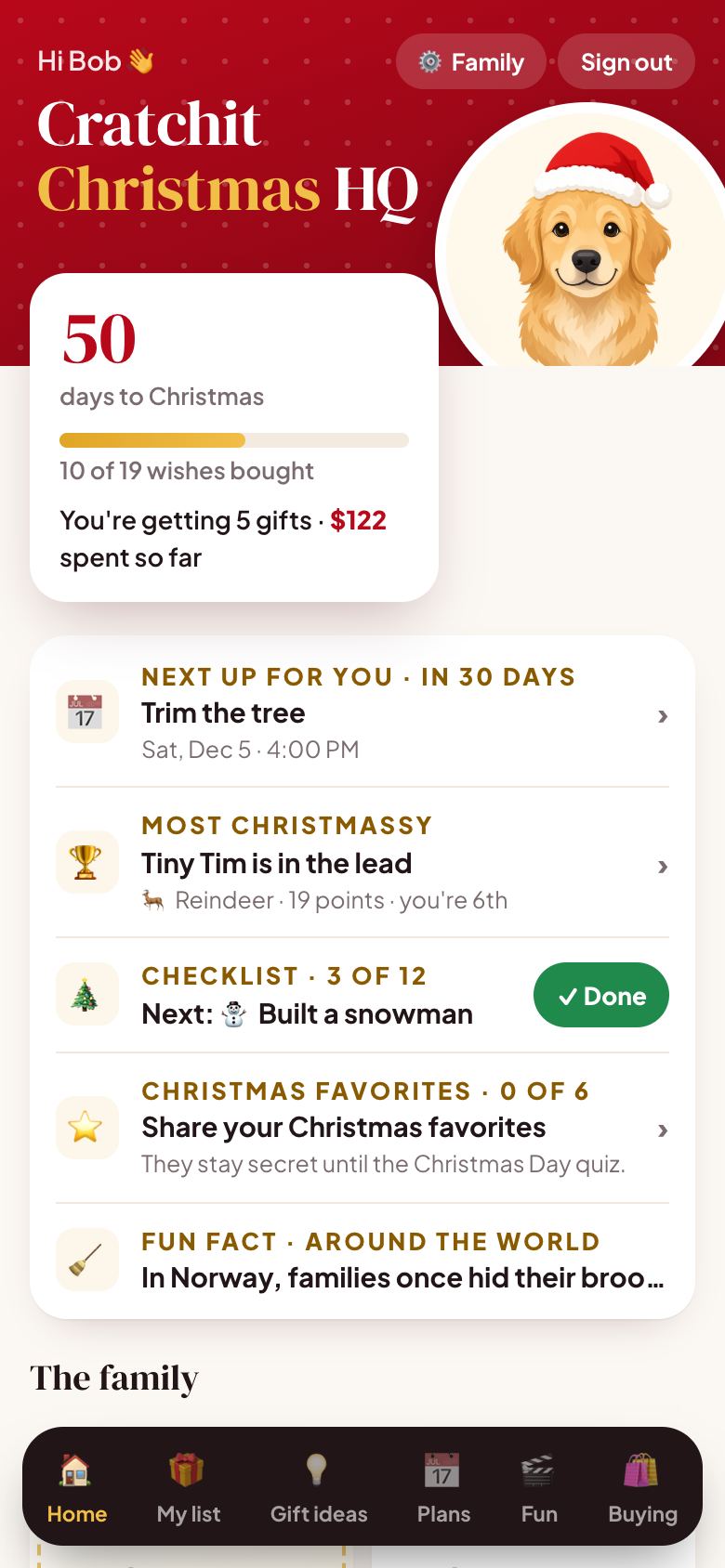
1Sign in
There are two ways in. Your organizer (the person who set up your family) will tell you which one is yours.
With your email
- Open christmashq.app, type your email and tap Email me a sign-in link. There's no password to remember.
- Open the email and tap the link, or type the 6-digit code from the email into the app.
- Nothing arrived? Wait a minute, check your spam or junk folder, then tap Didn't get it? Send it again.
With a family code and PIN
- Tap Have a family code? Sign in with your PIN.
- Type your family's code, tap your name, then type your PIN.
- Forgot your PIN? Ask your organizer for a new one. It takes them a few seconds.
⏳ You stay signed in. Once you're in, Christmas HQ remembers you for 30 days, and every visit starts that again. Most people sign in once for the whole season.
2Put it on your home screen
Christmas HQ works like an app: an icon on your phone, full screen, no app store. Do this once and it's always one tap away.
On an iPhone or iPad
- Open christmashq.app in Safari (the blue compass). If you opened it from an email or a text, it may be inside another app: tap the Safari or "Open in browser" button first.
- Tap the Share button: a square with an arrow pointing up. On newer iPhones, tap ••• first and you'll find Share there.
- Scroll down and tap Add to Home Screen, then Add.
- Open Christmas HQ from the new icon and sign in there. If you sign in by email, type the 6-digit code rather than tapping the link: the link opens Safari, not your home screen icon.
On an Android phone
- Open christmashq.app in Chrome.
- Tap the Install button on the Christmas HQ home screen. Don't see it? Tap Chrome's ⋮ menu, then Add to Home screen or Install app.
3Make your wish list
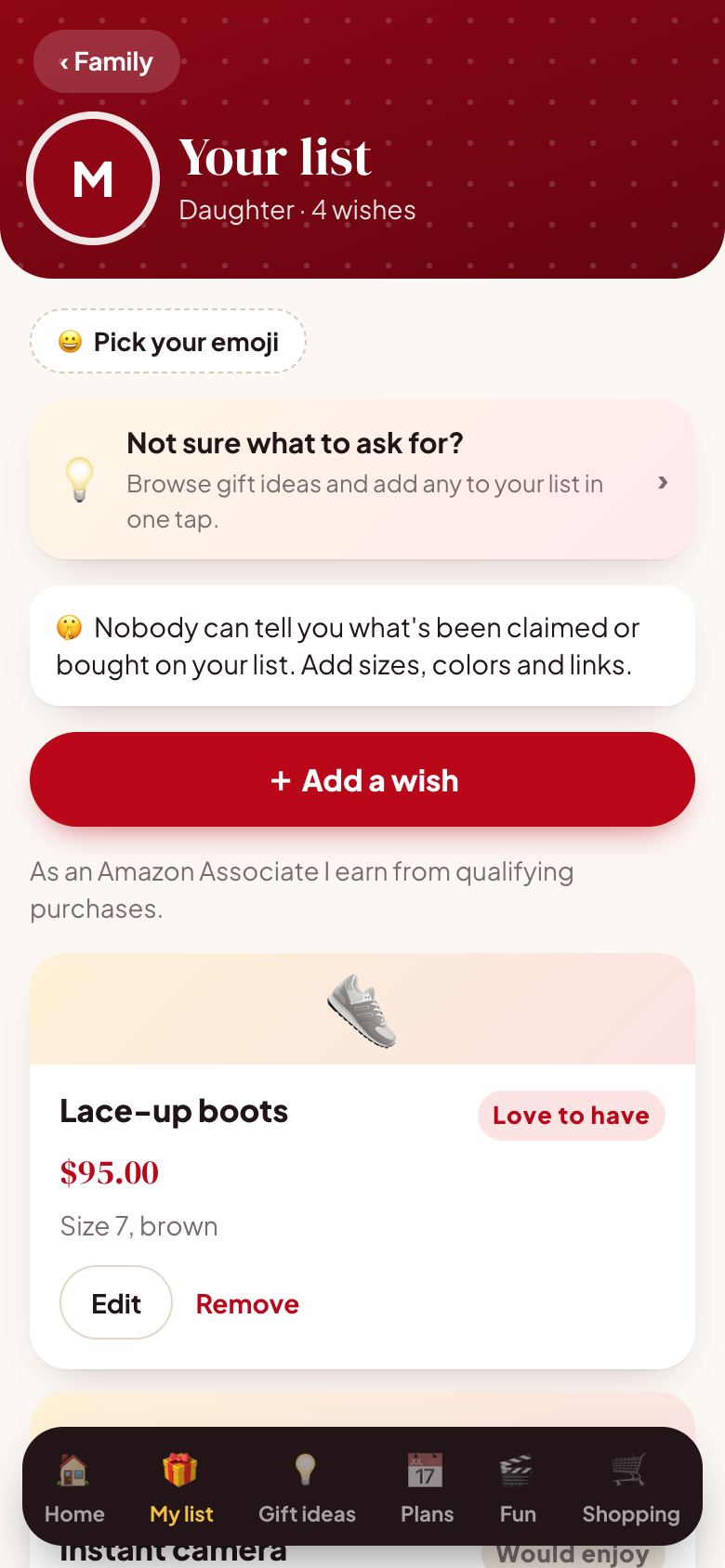
Tap 🎁 My list at the bottom, then + Add a wish. The more you tell people, the easier it is to get it right.
- What is it? is the only thing you have to fill in. Everything else helps.
- Paste a product link so people buy exactly the right one.
- Add the price, the size, and notes such as the color or which edition.
- Pick how much you want it: Love to have, Would enjoy, or Nice extra.
- Stuck for ideas? Tap 💡 Gift ideas, or look at the gift idea of the day on Home, for hand-picked suggestions you can add in one tap.
🤫 No spoilers. Your own list never shows what's been claimed or bought. Christmas morning stays a surprise.
4Shop for the family
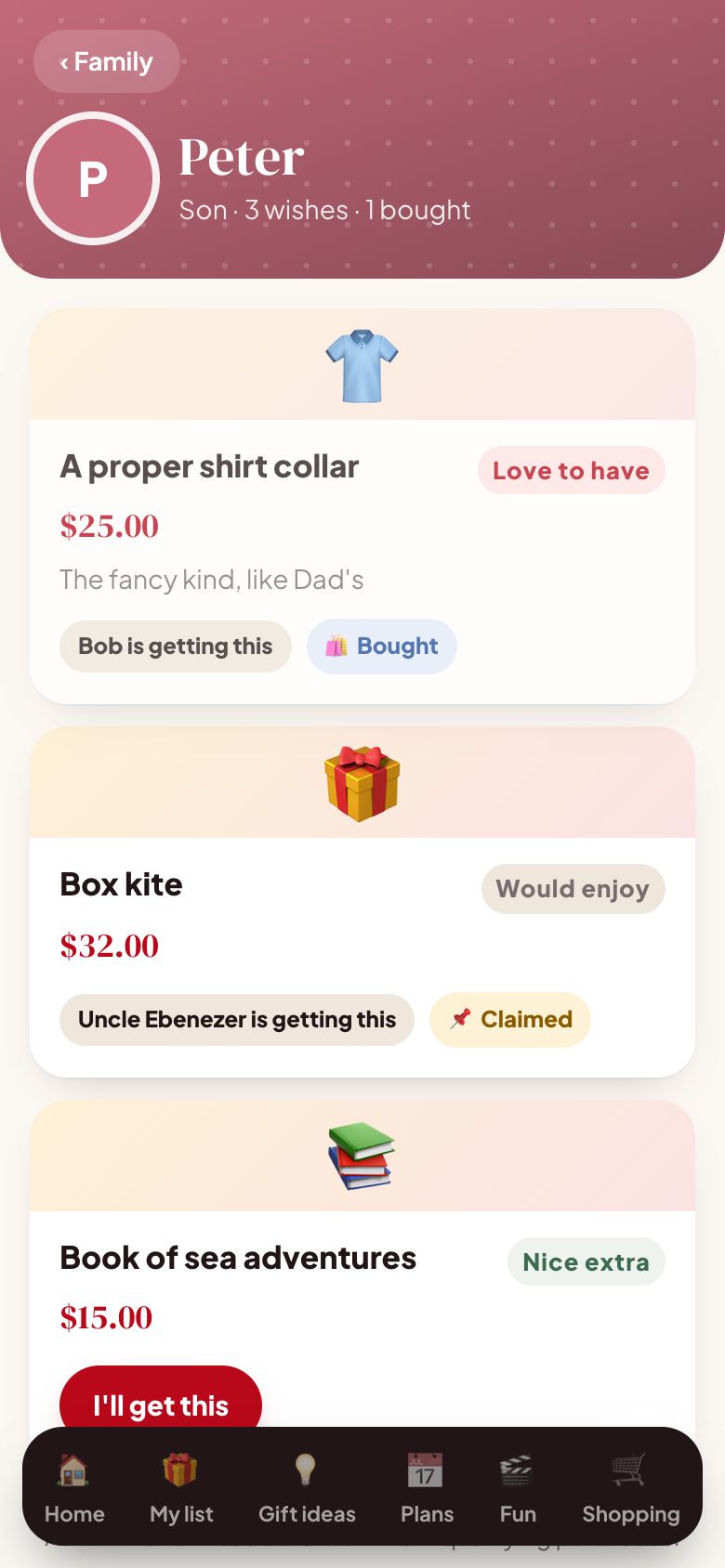
On 🏠 Home, tap someone's name to see their list.
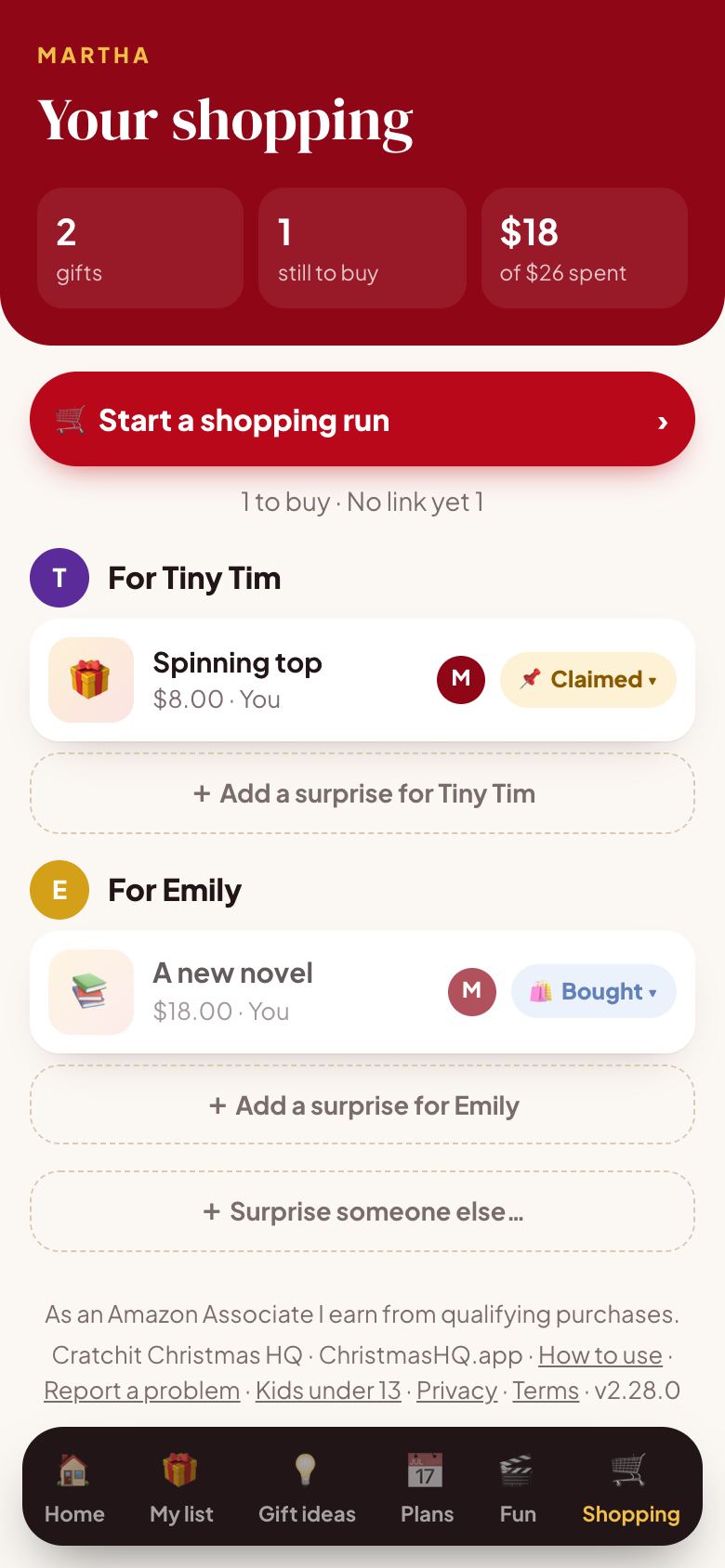
- Want to give something that isn't on their list? Add a surprise from their list page. Only the other shoppers can see it.
- Tap a gift you've picked to move it along: bought, arrived, wrapped.
- Changed your mind? Tap the gift, then Release…, so someone else can pick it.
5Plans and fun
- In Plans, tap I'm going and pick something to bring.
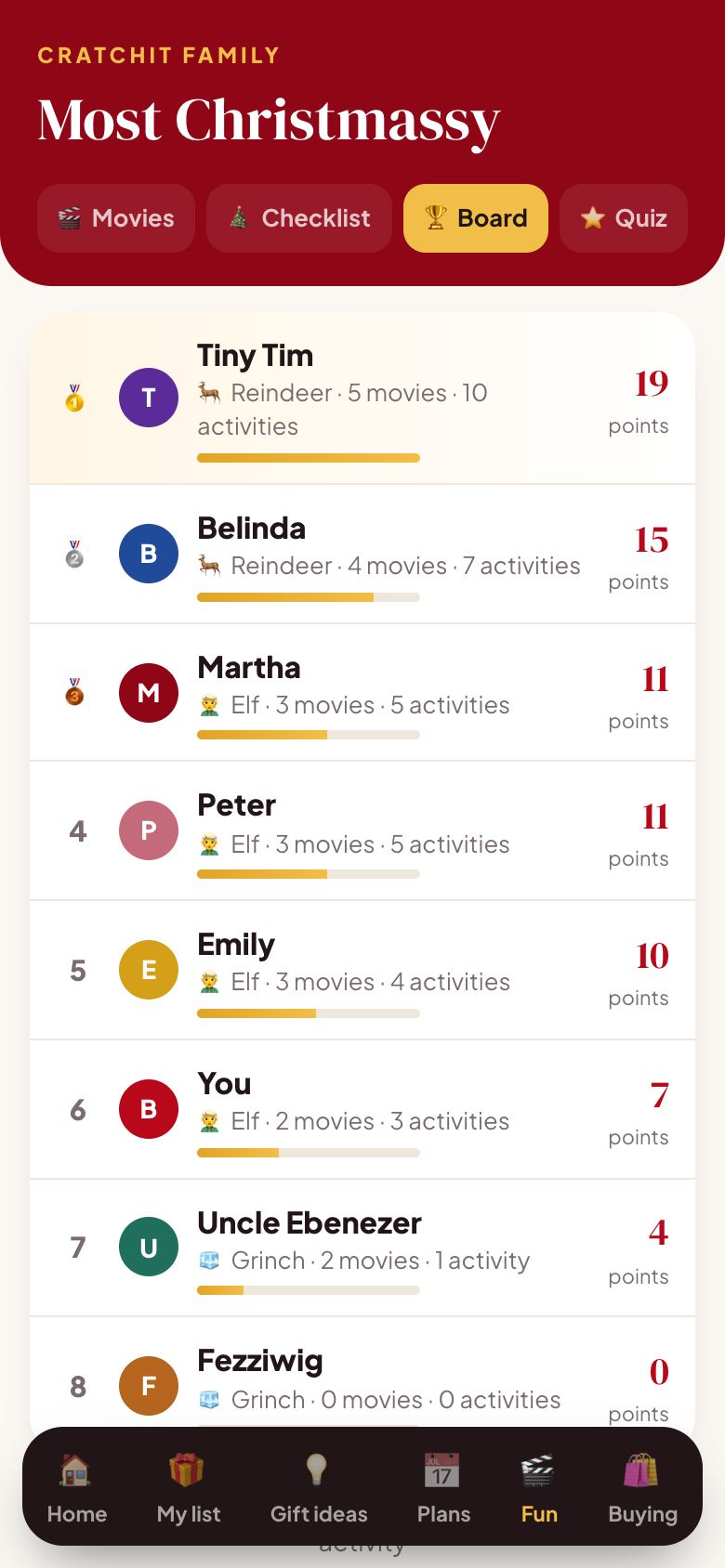
- In Fun, log the movies you watch and tick off the checklist (cookies baked, lights seen) to climb from 🧊 Grinch to 🎅 Santa.
- Answer the favorites questions, and on Christmas Day the family can play "Who said it?".
6Make it easier to read
- Bigger text: at the bottom of the Home screen (and on the sign-in screen), tap A+ or A++. It's remembered on that phone.
- A Sunday email: if you sign in with your email, turn on the Sunday email card on the Home screen for a weekly note with the plans and how many gifts you have left to buy. It never names a gift.
- The back button always brings you back to Christmas HQ, even after you open a shop's website.
For the organizer
7Running your family's HQ
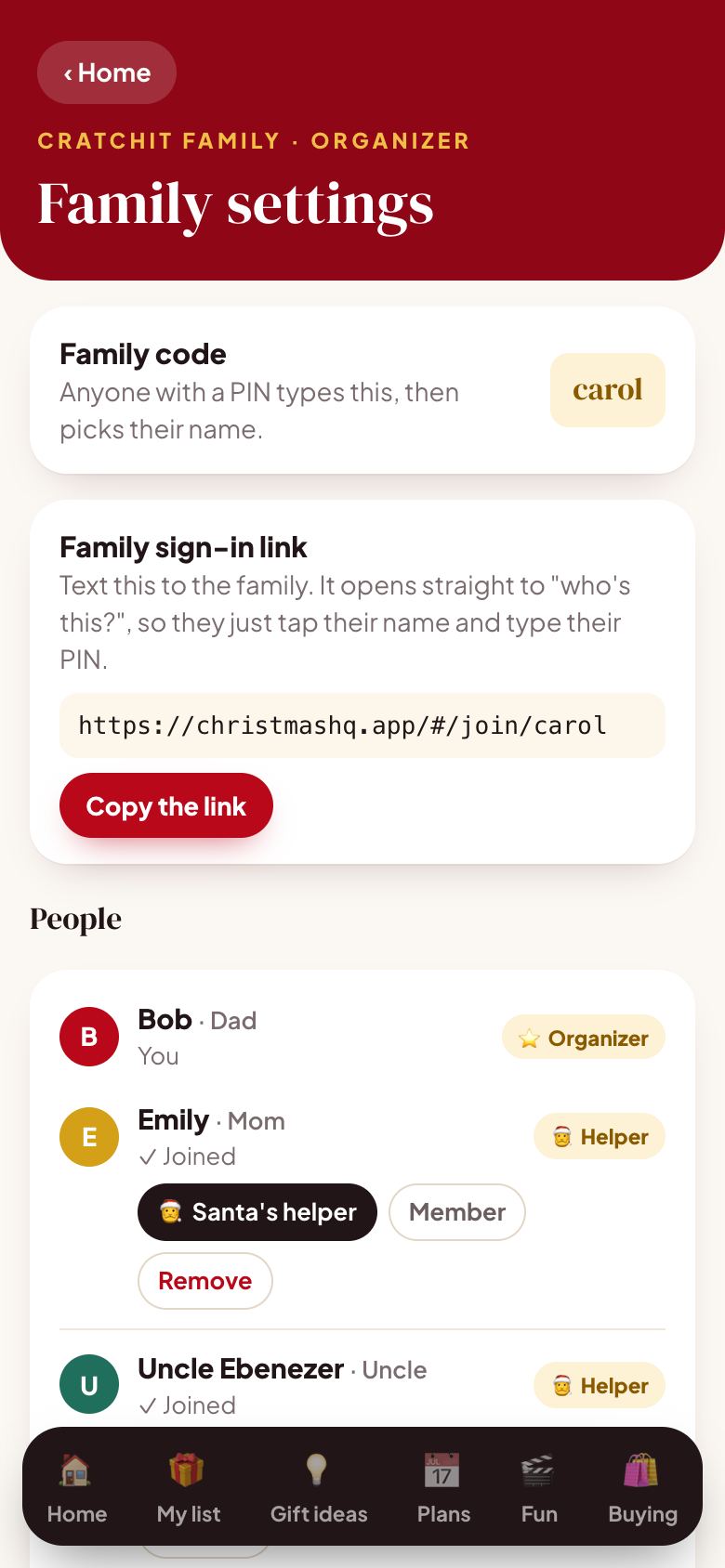
- Go to Family settings and tap Add someone. Grown-ups get an email invite. Teens get a PIN. Kids under 13 don't need an account at all.
- Santa's helpers see Santa's Desk (every gift for everyone, who's getting it and what's been spent, except their own presents), run every young kid's list and fill stockings. Keep this to the one or two people who run Christmas.
- Members make their own list and claim and buy gifts for anyone. They don't see what anyone else is spending.
- A member with a child under 13 can run just that child's list: under the child, tap the parent's name next to Run by.
- Someone forgot their PIN? Tap New PIN on their row. Someone didn't get their invite? Tap Resend invite.
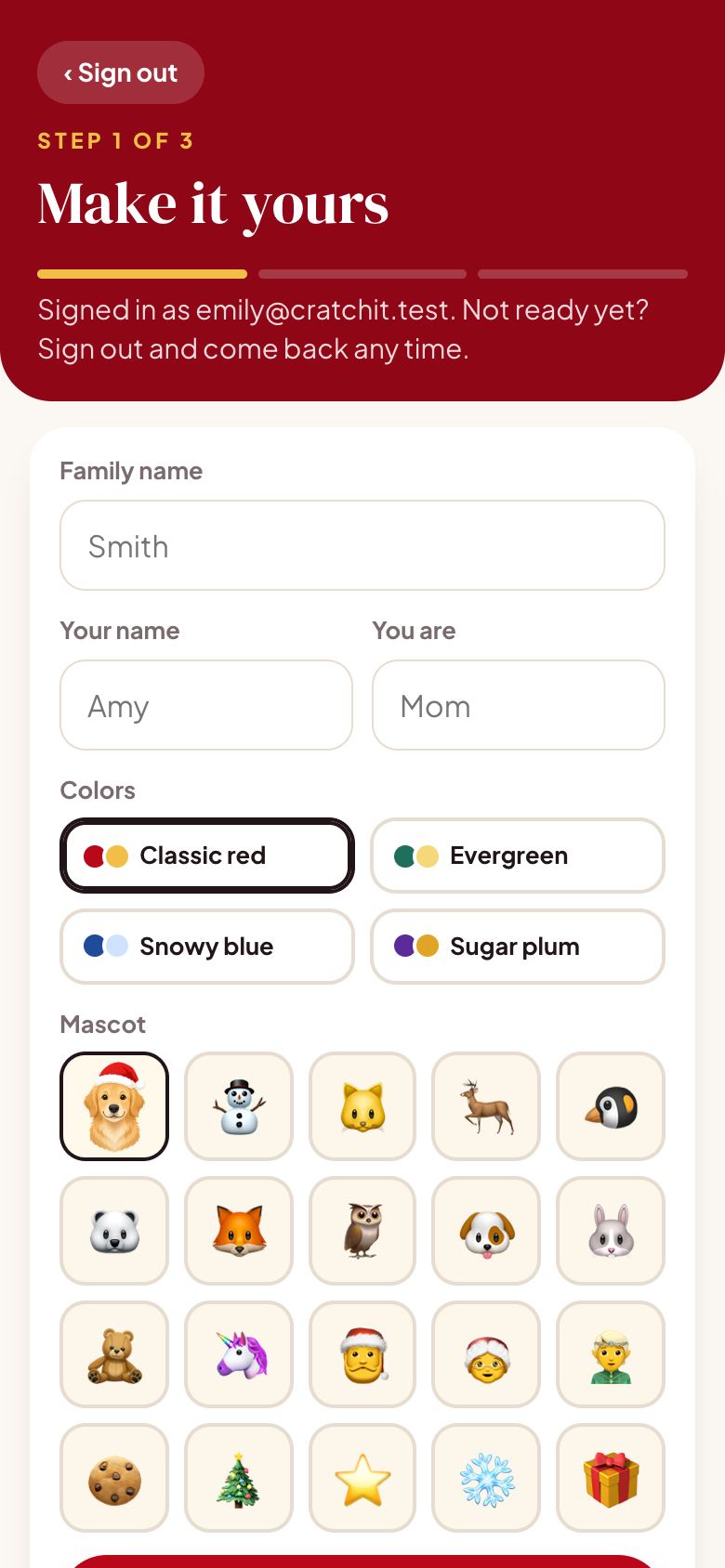
- Pick your family's colors and mascot, and switch off any sections you don't need.
🧸 Young kids? Read how Christmas HQ works for kids under 13.
Questions people ask
No. Nobody ever sees who's buying their gifts, or whether they've been bought.
You probably opened Christmas HQ from your home screen icon. Type the 6-digit code from the email instead.
Tap the banner to update. It only takes a second.
No. Christmas HQ is free for every family this Christmas. We earn a small commission when you buy on Amazon through a link in the app, such as the gift idea of the day on Home. It doesn't change your price.
Something not working? Tap Report a problem at the bottom of any screen in the app. · Kids under 13 · Privacy Policy · Terms · Questions: elswanapps@gmail.com